
Remove Unwanted Objects with AI
Upload a photo, pick one of six removal targets, and get a clean image that keeps the subject, pose, and composition — instead of typing remove this and losing the background around it.
The result matches the closest available aspect ratio to your source image.
Remove objects workbench


Choose a preset
ShadowRemove cast or harsh shadows
Source
Your image
Result
Your result
- InputOne image
- Directions6 removal targets
- FormatsJPEG, PNG, WebP
- File limitUp to 10 MB
- StoragePrivate to your account
Removal presets
Compare six removal targets before you create. The current image is a temporary reference preview, not a before-and-after result.
- BeforeAfter
ShadowRemove cast or harsh shadows 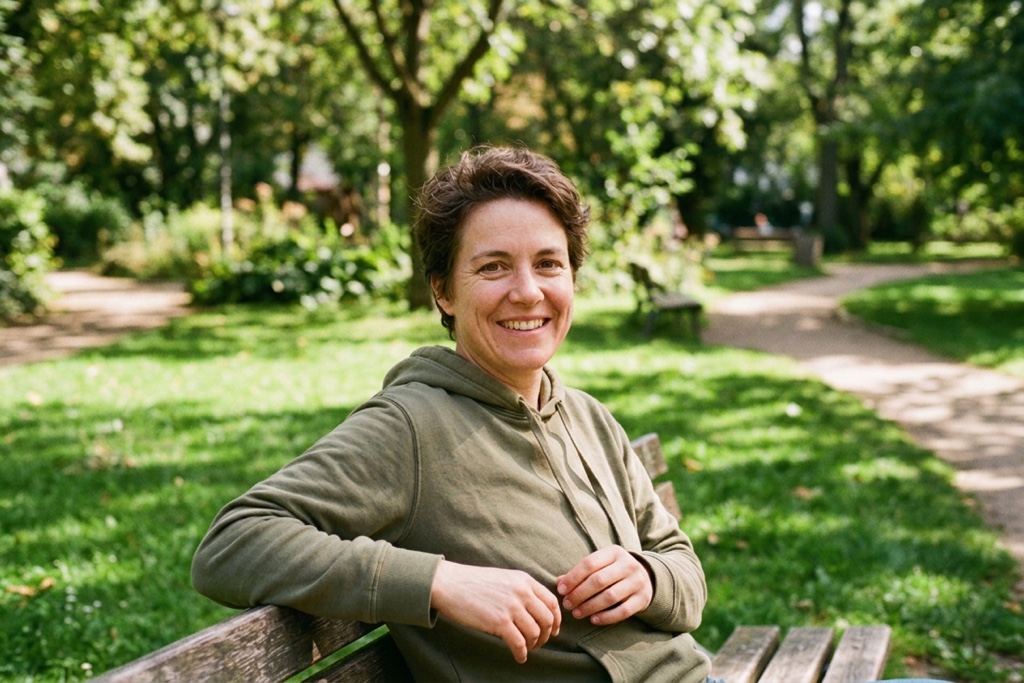 BeforeAfter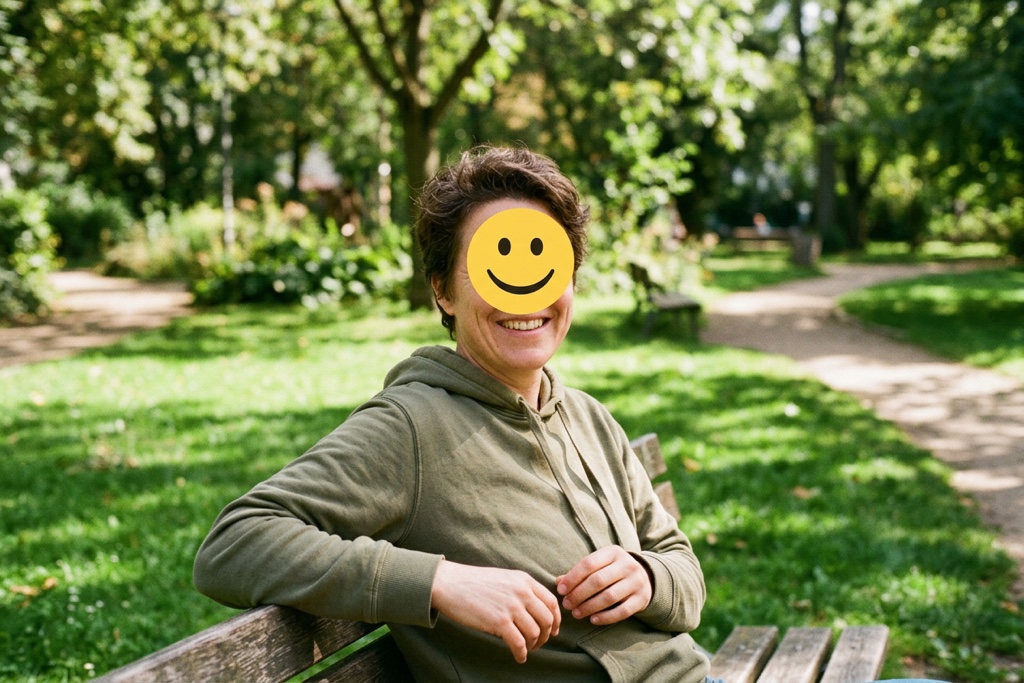
Emoji & StickersClear emoji and sticker overlays  BeforeAfter
Date StampRemove burned-in date text 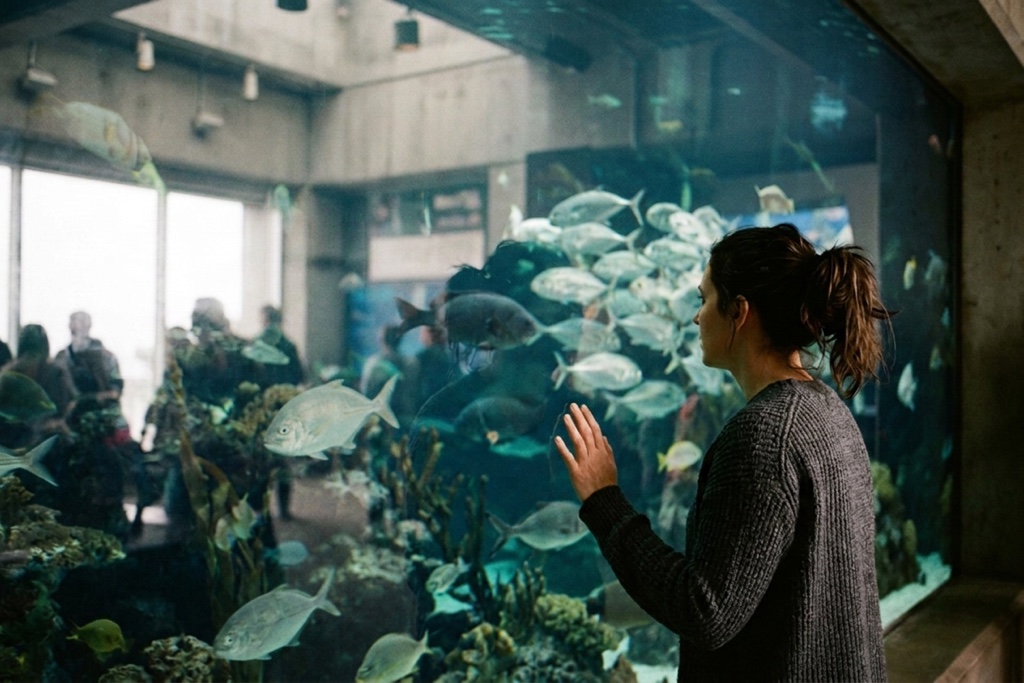 BeforeAfter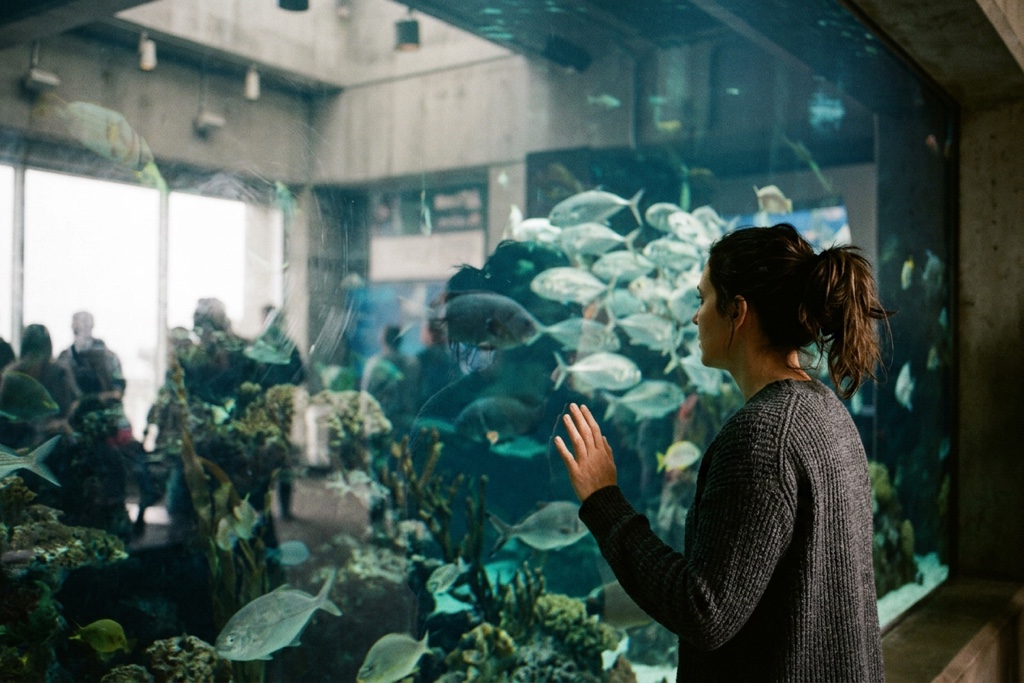
ReflectionClear glare and reflections  BeforeAfter
Blemish & SpotsClean spots and small marks 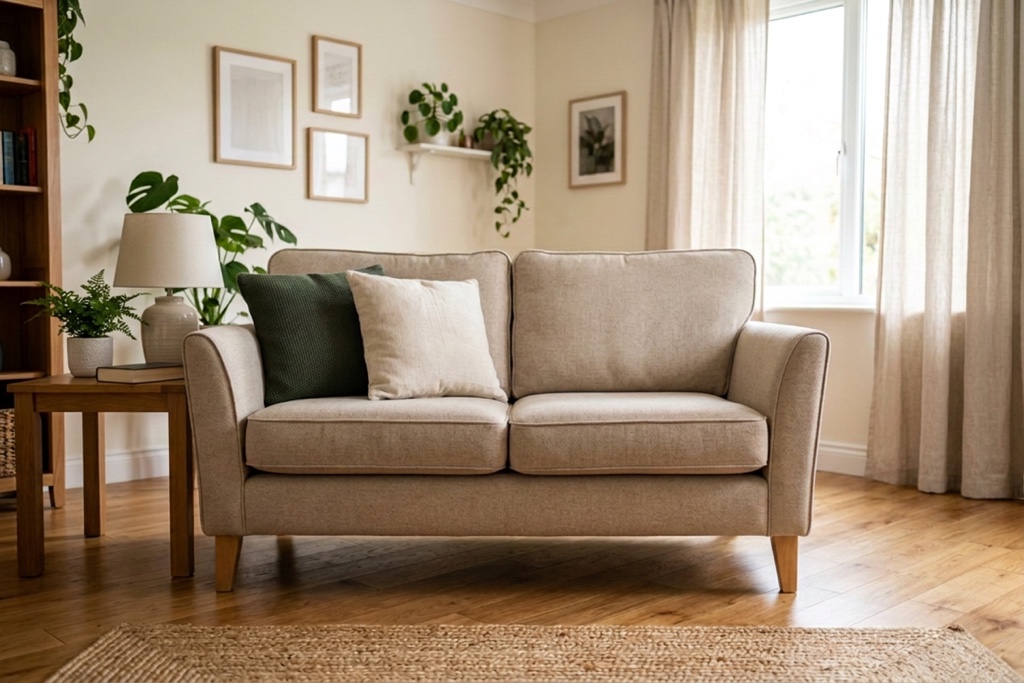 BeforeAfter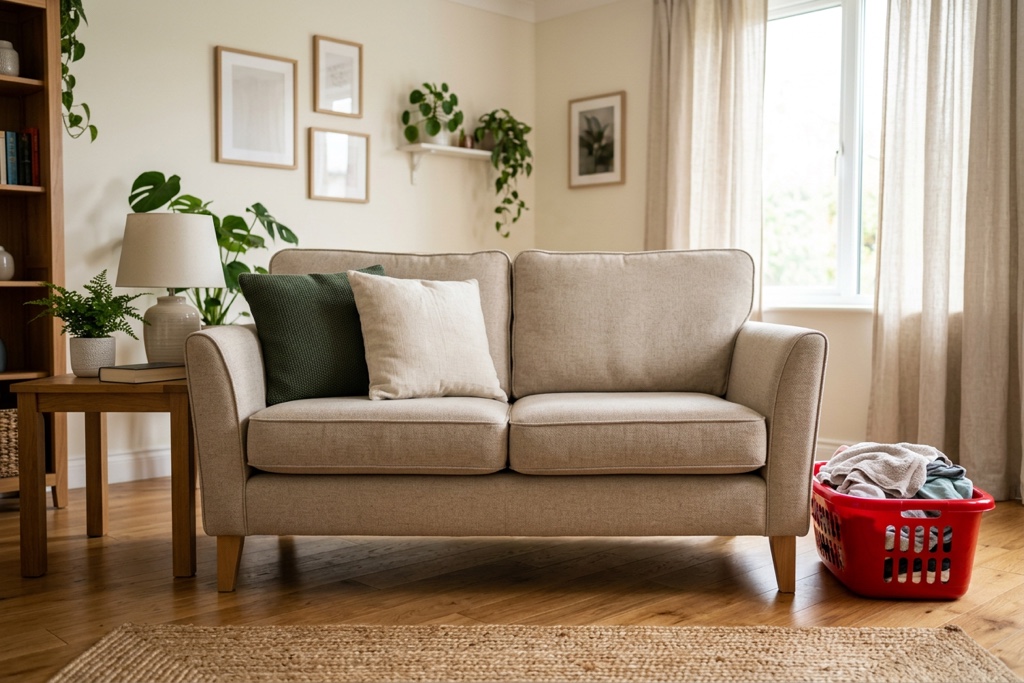
Background ClutterRemove distracting clutter
Why removing an object can go wrong
A clean result needs more than a remove label. It needs the targeted element gone and the area behind it rebuilt without replacing the subject or composition you started with.
Distracting objects in frame
Distracting shadows, stickers, stamps, and clutter pull attention from the subject. Each preset targets one element with concrete cues instead of one vague remove keyword.
The word remove is not enough
Typing remove this into a prompt often smears the background or removes the wrong thing. Each preset gives the edit a concrete target while keeping the rest of the image intact.
Keep the original person and frame
Every preset tells the edit to keep identity, facial features, pose, composition, and framing unchanged, so your cleaned photo is still recognizably the same shot.
From upload to a clean photo
One focused workbench keeps the source image, removal preset, credit cost, and private result together while you clean up a photo.
- 1
Add one image
Choose one JPEG, PNG, or WebP image. It uploads to your private account storage only when you create.
- 2
Choose a removal preset
Choose a removal target while the source image remains visible in the workbench.
- 3
Clean up and download
Use account credits to create, review, and download your clean image from the private result area.
Where removing objects helps
Use one focused cleanup when the source is already right but a shadow, stamp, sticker, or clutter is in the way.
Portraits and profile photos
Clear a distracting shadow or reflection from a portrait while keeping the person, pose, and framing recognizable.
Creator drafts
Remove stickers, emoji, or date stamps from generated campaign or social images before review.
Product and lifestyle images
Clear background clutter from a real product or lifestyle image while preserving its layout.
What stays clear while you clean up
Keep the settings that matter visible without turning one cleanup into a long editor.
One image input
Each result accepts one JPEG, PNG, or WebP file up to 10 MB.
Six focused presets
Compare six removal targets before you create a result.
Visible framing behavior
The result uses the closest available aspect ratio to your source image.
Private result destination
The source image and result stay private to your account and the completed result can be downloaded.
Why use this remove objects workbench?
FluxDream keeps the source, removal target, and private result destination together so the edit remains easy to follow.
One canonical workbench
Upload, preset selection, status, and result share one route.
Transparent constraints
Accepted formats, file limit, privacy boundary, framing behavior, and credit status appear before you create.
Easy to try another direction
Replace the source or select another supported removal target without leaving the page.
Questions before you clean up
Understand identity preservation, supported files, privacy, framing, and credits before you create.
- Which image files can I use?
- Upload one JPEG, PNG, or WebP file up to 10 MB.
- Will it keep my face and pose?
- The removal prompt explicitly preserves subject identity, facial features, pose, composition, and framing, and only clears the targeted element. As with any generated edit, review the result before using it.
- Why not just prompt remove this?
- A generic request to remove something can smear the background or delete nearby detail. These presets give the cleanup a concrete target while asking it to rebuild the area naturally.
- Will the result keep my image framing?
- The result uses the closest supported aspect ratio to your source image, while the edit prompt preserves its composition and framing.
- Will my source image or result be public?
- No. Your source image and result remain private to your account.
- How many credits does one result use?
- The workbench shows the exact credit cost before generation. If your balance is too low, it opens the available credit options without discarding your image or preset.
- Is the remove objects tool free?
- Cleaning up a photo uses credits. Your current balance and any available credit options are shown before you continue.
- Does it work on AI-generated images and real photos?
- Yes. You can clean up AI-generated images and real photos alike, clearing shadows, stickers, stamps, or clutter while preserving the subject and composition.
Explore more
Continue from this focused cleanup tool into other FluxDream image workflows.
Ready to clean up your photo?
Return to the workbench, choose a removal target, and confirm the credit cost before you create.