
Make a Realistic AI Image
Upload an AI-generated or real photo, pick one of six photographic presets, and get a realistic AI image that keeps the subject, pose, and composition — instead of typing the word realistic and getting waxy skin.
The result matches the closest available aspect ratio to your source image.
Make photo realistic workbench

Choose a preset
Natural PhotoTrue-to-life color and lighting
Source
Your image
Result
Your result
- InputOne image
- Directions6 realism presets
- FormatsJPEG, PNG, WebP
- File limitUp to 10 MB
- StoragePrivate to your account
Realism presets
Compare six photographic directions before you create. The current image is a temporary reference preview, not a before-and-after result.
Natural PhotoTrue-to-life color and lighting 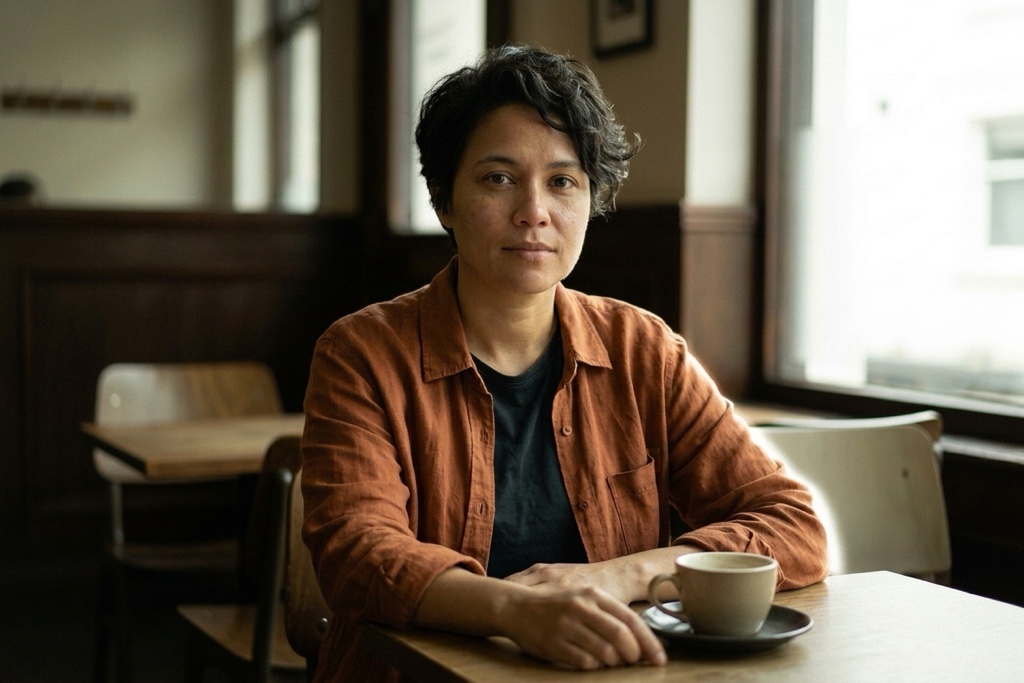
iPhone SnapshotCasual smartphone capture 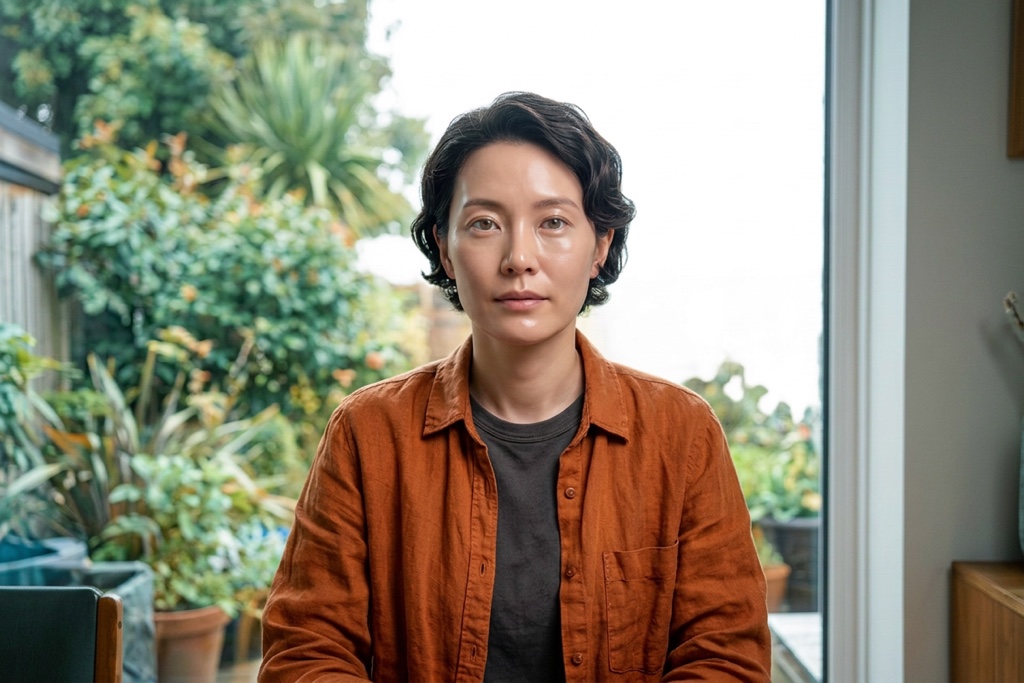
DSLR Portrait50mm depth and neutral color 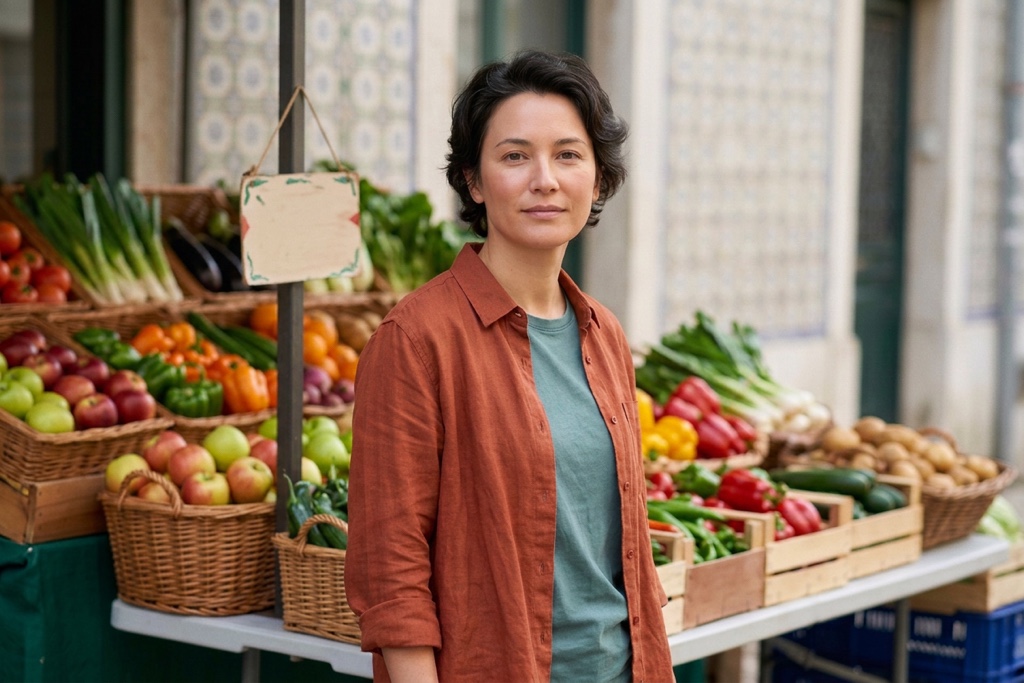
Documentary / CandidAvailable light and unposed detail 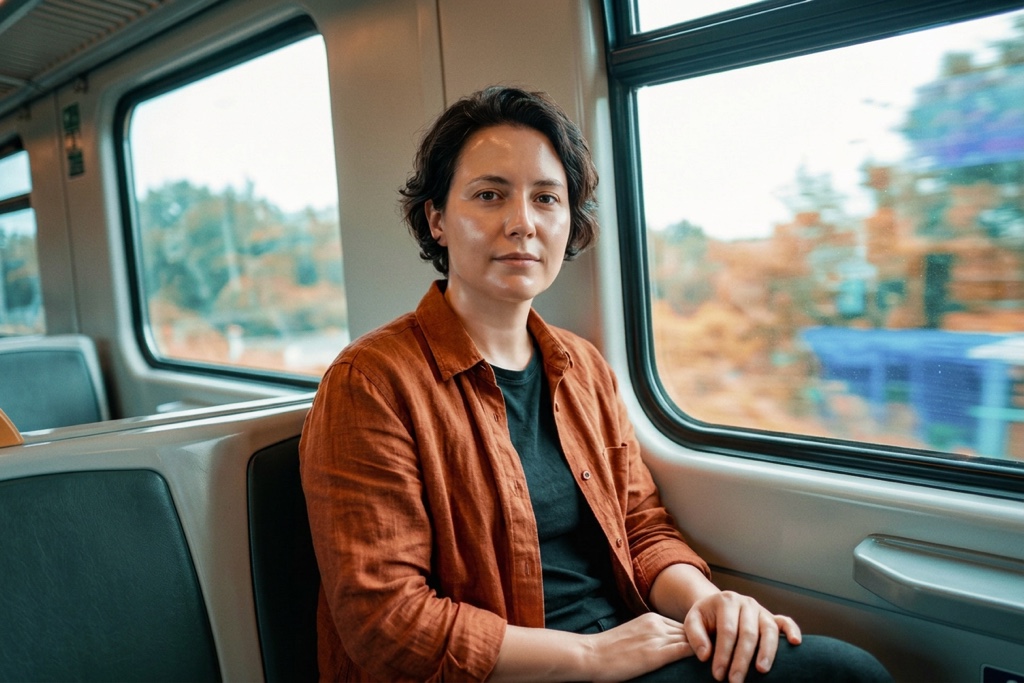
35mm FilmSubtle grain and analog color 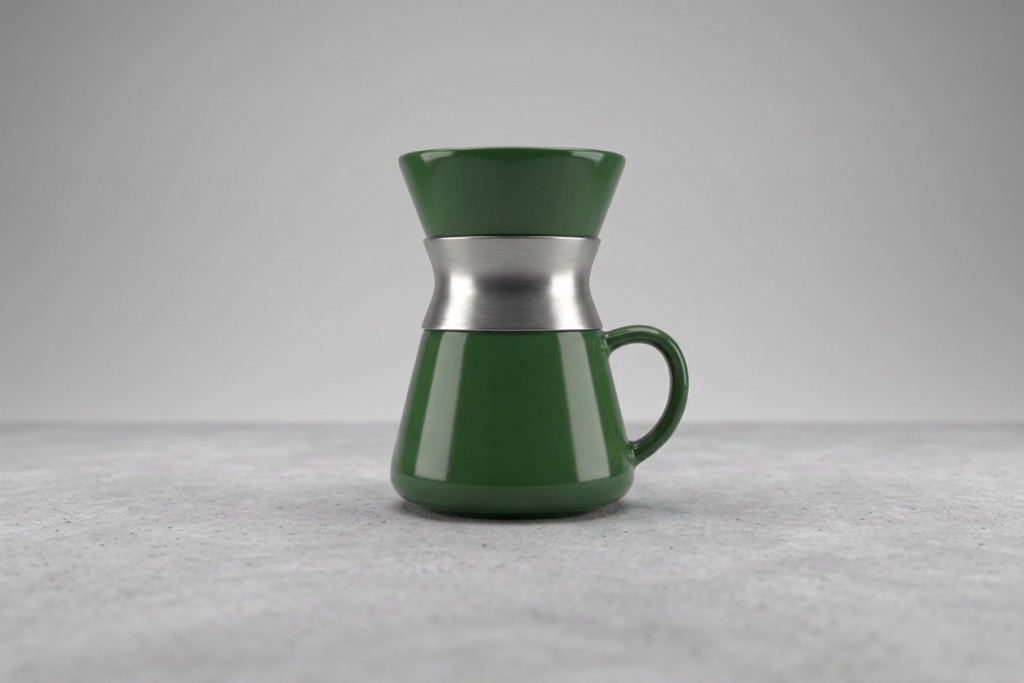
Studio ProductSoftbox light and accurate materials
Why a realistic AI image can still look fake
A believable, realistic AI image needs more than a realism label. It needs natural texture and light without replacing the person or composition you started with.
Plastic skin and CGI detail
Target over-smoothed skin, waxy highlights, and CGI artifacts — the details that make a realistic AI image collapse into obvious AI slop — with cues for real texture, pores, and believable light.
The word realistic is not enough
Typing realistic into a prompt often returns greasy, over-perfect skin. Each preset gives the edit concrete photographic direction instead of one vague realism keyword.
Keep the original person and frame
Every preset tells the edit to keep identity, facial features, pose, composition, and framing unchanged, so your realistic AI image is still recognizably you.
From upload to a realistic AI image
One focused workbench keeps the source image, realism preset, credit cost, and private result together while you make a realistic AI image.
- 1
Add one image
Choose one JPEG, PNG, or WebP image. It uploads to your private account storage only when you create.
- 2
Choose a realism preset
Choose a photographic direction while the source image remains visible in the workbench.
- 3
Retouch and download
Use account credits to create, review, and download your realistic AI image from the private result area.
Where a realistic AI image helps
Use one focused retouch when the source is already right but the texture, light, or finish of your realistic AI image still feels artificial.
Portraits and profile photos
Retouch overly smooth faces into a realistic AI image while keeping the person, pose, and framing recognizable.
Creator drafts
Give generated campaign or social images a more natural photographic finish before review.
Product and lifestyle images
Apply a consistent photographic direction to a real product or lifestyle image while preserving its layout.
What stays clear while you retouch
Keep the settings that matter visible without turning one realism retouch into a long editor.
One image input
Each result accepts one JPEG, PNG, or WebP file up to 10 MB.
Six focused presets
Compare six photographic directions before you create a result.
Visible framing behavior
The result uses the closest available aspect ratio to your source image.
Private result destination
The source image and result stay private to your account and the completed result can be downloaded.
Why use this realistic AI image workbench?
FluxDream keeps the source, photographic direction, and private result destination together so the edit remains easy to follow.
One canonical workbench
Upload, preset selection, status, and result share one route.
Transparent constraints
Accepted formats, file limit, privacy boundary, framing behavior, and credit status appear before you create.
Easy to try another direction
Replace the source or select another supported photographic direction without leaving the page.
Questions before you retouch
Understand identity preservation, supported files, privacy, framing, and credits before you create.
- Which image files can I use?
- Upload one JPEG, PNG, or WebP file up to 10 MB.
- Will it keep my face and pose?
- The retouch prompt explicitly preserves subject identity, facial features, pose, composition, and framing. As with any generated edit, review the result before using it.
- Why not just prompt the word realistic?
- A generic request for realism can leave smooth skin, waxy highlights, or CGI detail untouched. These presets give the realistic AI image concrete photographic cues while asking it to restore natural texture.
- Will the result keep my image framing?
- The result uses the closest supported aspect ratio to your source image, while the edit prompt preserves its composition and framing.
- Will my source image or result be public?
- No. Your source image and result remain private to your account.
- How many credits does one result use?
- The workbench shows the exact credit cost before generation. If your balance is too low, it opens the available credit options without discarding your image or preset.
- Is the realistic AI image tool free?
- Creating a realistic AI image uses credits. Your current balance and any available credit options are shown before you continue.
- Does it work on AI-generated images and real photos?
- Yes. You can retouch AI-generated images that look plastic into a realistic AI image, and apply the same photographic directions to a real photo while preserving its subject and composition.
Explore more
Continue from this focused retouching tool into other FluxDream image workflows.
Ready for a more realistic AI image?
Return to the workbench, choose a photographic direction, and confirm the credit cost before you create.