
Six AI Image Tools, One Job at a Time
Every AI image tool here takes one photo, applies one kind of change, and hands back a result you can download. No layers, no masks, no prompt writing — pick the tool that matches what you want to change, then pick a preset. Photo to cartoon, make photo realistic, polaroid photo maker, relight photo, remove unwanted objects, and the AI portrait editor each ship a full set of curated presets.
Each AI image tool works on one uploaded image at a time and returns a downloadable result. Generations spend credits.
- Tools6 focused editors
- Presets57 in total
- Input1 photo
- Output1K resolution
- SetupNo prompt writing
Choose a tool
Six single-purpose AI image tools. Each card shows a real result produced by that tool's presets, so you can see the look before you open the tool.
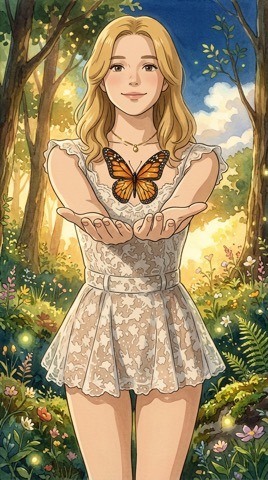
AI Photo to Cartoon
Turn one private photo into a cartoon-style image with credits.
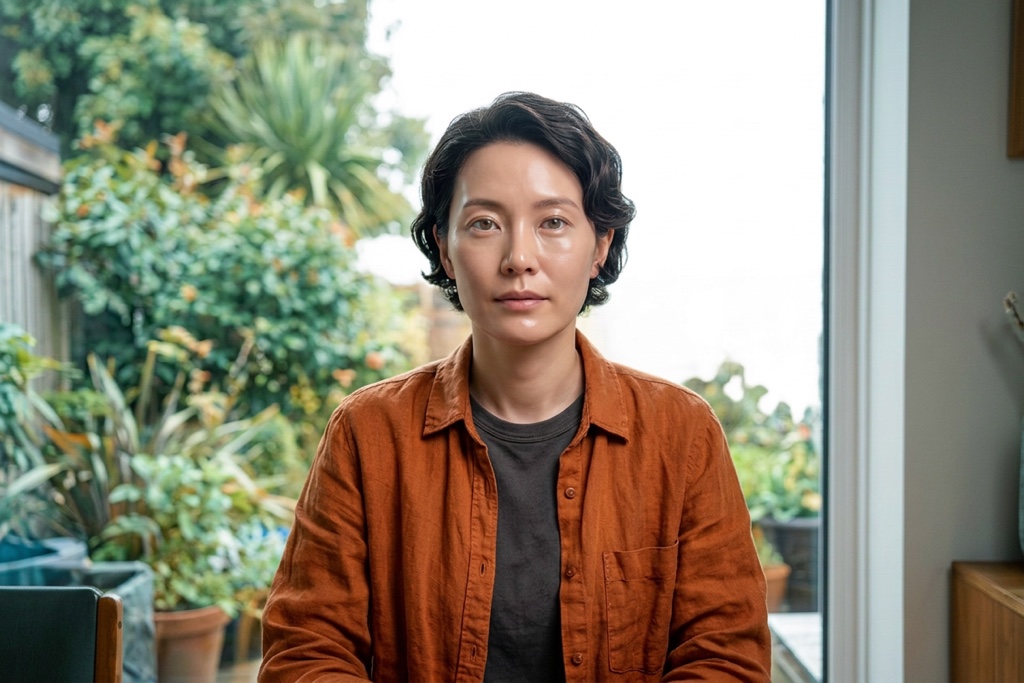
Make Photo Realistic with AI
Retouch one private image with a subject-preserving realistic photo preset.

Polaroid Photo Maker
Turn any photo into a polaroid photo with six instant-film presets and the classic white frame.

Relight a Photo with AI
Relight one private image with a subject-preserving lighting preset.
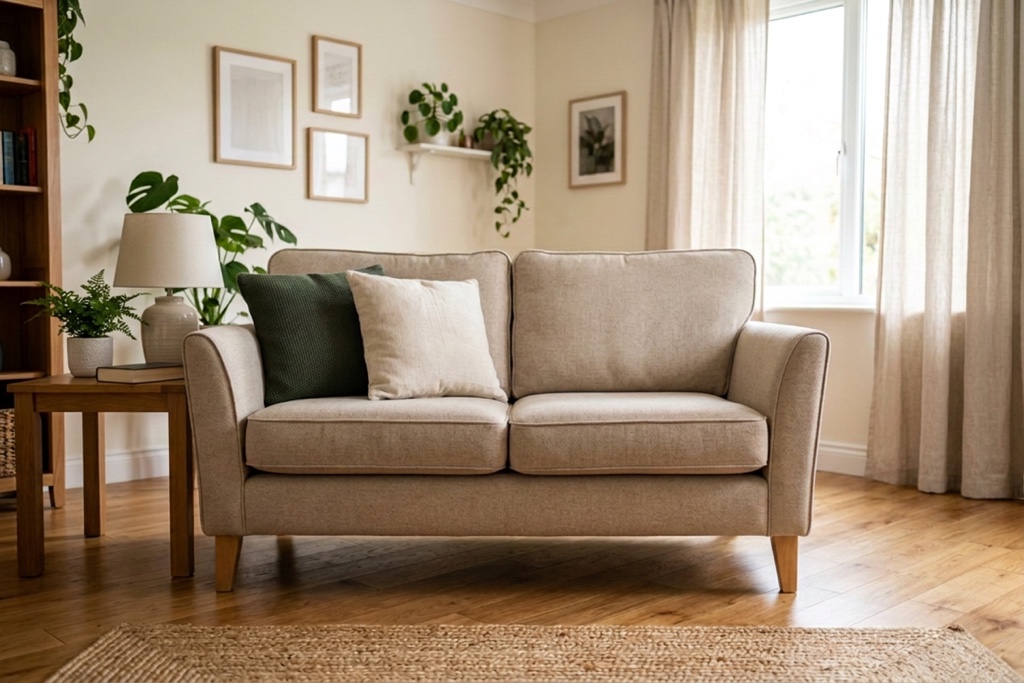
Remove Unwanted Objects with AI
Clean one private image with a subject-preserving object-removal preset.
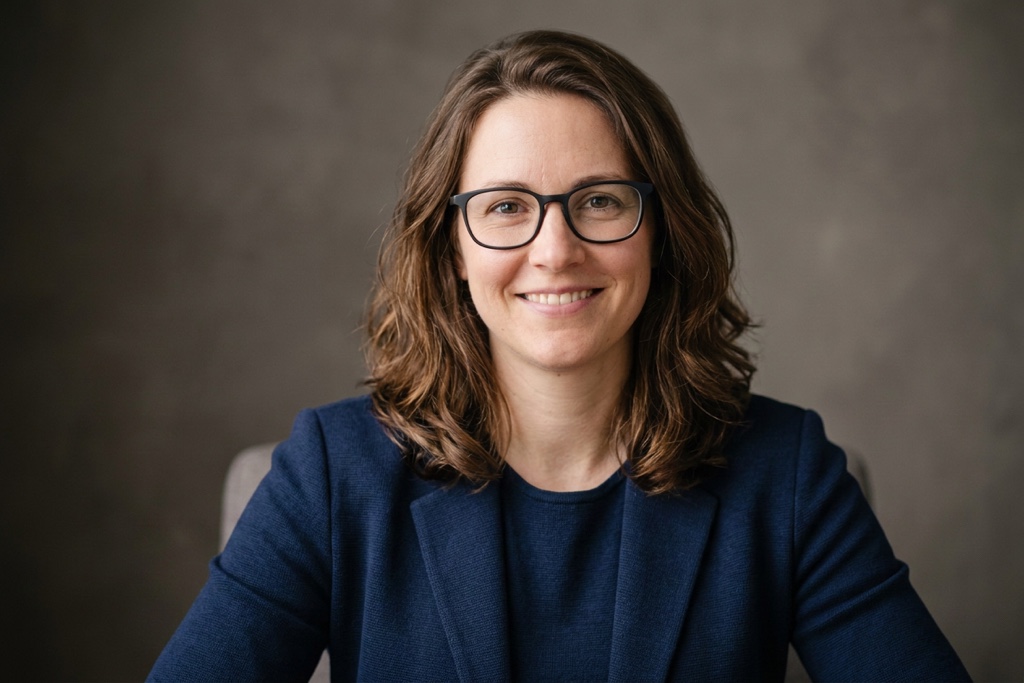
AI Portrait Editor
Edit one private portrait with an identity-preserving portrait preset.
Which tool should you use?
These AI image tools overlap a little. This table is the fastest way to land on the right one — photo to cartoon for illustration, make photo realistic for real-photo output, polaroid photo maker for a frame, relight photo for lighting, remove unwanted objects for cleanup, and the AI portrait editor for people.
| Tool | Best for | What it changes | Presets |
|---|---|---|---|
| AI Photo to Cartoon | Turning a real photo into an illustration | Rendering style — line work, shading and color. Subject and pose stay. | 27 |
| Make Photo Realistic with AI | Making an AI-looking image pass as a photograph | Skin texture, lighting and color response. Composition stays. | 6 |
| Polaroid Photo Maker | Adding an instant-film look and a printed white frame | Film color, grain and the print border. Framing stays. | 6 |
| Relight a Photo with AI | Rescuing a good shot with flat or unflattering light | Light direction, shadows and color temperature only. | 6 |
| Remove Unwanted Objects with AI | Deleting something you do not want in the frame | The chosen object or overlay, plus the area rebuilt behind it. | 6 |
| AI Portrait Editor | Adjusting how a person looks in a headshot | Hair, outfit, pose, glasses or expression. Facial identity stays. | 6 |
How every tool works
The flow is identical across all six AI image tools, so switching between photo to cartoon, relight photo, remove unwanted objects and the rest costs you nothing to learn.
- 1
Open a tool and upload one photo
JPEG, PNG or WebP up to 10 MB. One image per generation — there is no batch queue to manage.
- 2
Pick a preset
Each preset is a fully written instruction, and every preset ships with a real example image, so you can see the look before you commit to it.
- 3
Generate and download
The result keeps your original framing and aspect ratio at 1K. Download it, or run a different preset on the same upload.
Where people use these tools
Profile pictures and avatars
Turn a phone snapshot into a cartoon avatar, or clean up a headshot until it works on a work profile.
Photos you want to print or post
Rescue the lighting on a good shot taken in bad light, or give a whole set of holiday photos one consistent instant-film look.
Cleaning images up before they ship
Remove a stray object, a burned-in timestamp or a sticker overlay before an image goes into a deck, a listing or a post.
Why single-purpose AI image tools
One decision instead of ten
A general editor asks you to choose a model, a resolution, an aspect ratio and a prompt. Each tool here has already made those choices for the one job it does.
Presets you can see before you commit
Every preset comes with a real example image, so you know what you are asking for instead of guessing from a name.
Your framing survives
Each AI image tool preserves the subject, pose and composition of the photo you uploaded, and changes only what the tool is for — the polaroid photo maker adds a frame, remove unwanted objects clears clutter, relight photo repaints the light.
Common questions
Questions that come up before people pick a tool.
- Do I need to write a prompt?
- No. Every preset contains a complete instruction written for that specific look. You upload a photo, pick a preset, and generate.
- How many photos can I upload at once?
- One. Each tool works on a single image per generation. To process several photos, run them one at a time.
- What file types and sizes are supported?
- JPEG, PNG and WebP, up to 10 MB per image.
- Will the result still look like the person in my photo?
- The presets are written to preserve identity, pose, composition and framing. Only the aspect of the image that the tool exists to change is changed.
- What resolution do I get back?
- 1K. Each tool matches the closest supported aspect ratio to your source image, so the result keeps your original framing.
- Do these tools use credits?
- Yes. Each generation spends credits from your balance, and the cost is shown before you generate.
- Can I run the same photo through more than one tool?
- Yes, and it is a common workflow — remove a distracting object first, then run a style preset on the cleaned-up result.
- What if none of the presets is what I want?
- Use the full generator instead. There you can write your own prompt and choose the model, resolution and aspect ratio yourself.
Keep going
When a preset is not enough, these give you more control.
Pick a tool and upload a photo
All six AI image tools follow the same three steps. Start with the one that matches the change you want to make — photo to cartoon, make photo realistic, polaroid photo maker, relight photo, remove unwanted objects, or the AI portrait editor.