
Split an Image into Layers
Split a flat image into separate transparent layers for the background, subjects, and text, then download them as a PSD or PNG files.
Hidden areas are filled in by AI. If a split fails, your credits are refunded automatically.
1. Upload an image
Areas hidden behind objects are filled in by AI, so they are an estimate rather than the original pixels. Output is up to about 1024 px on the long edge.
Upload an image and choose a version to see its layers here.
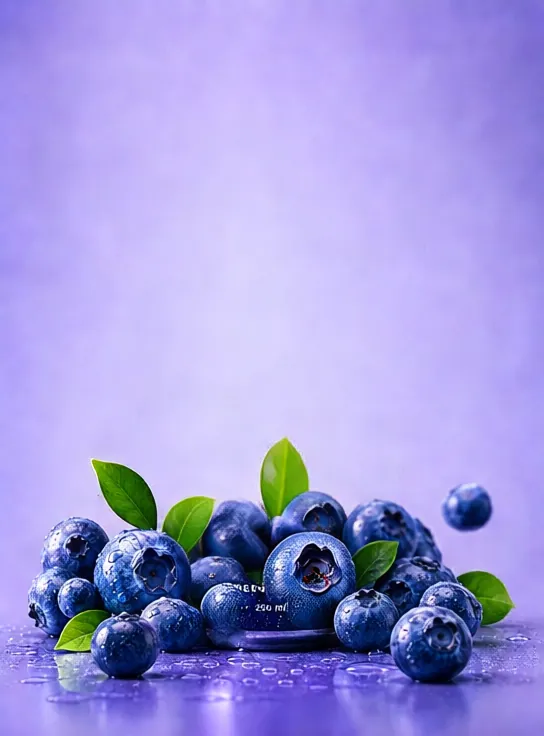
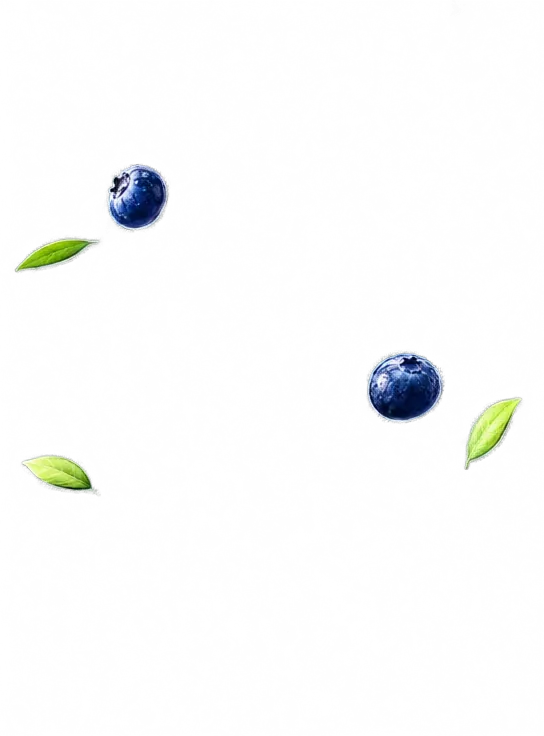
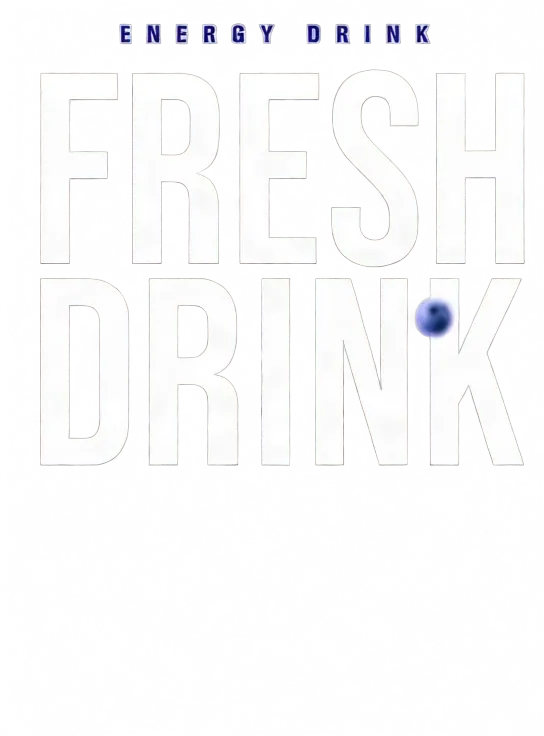
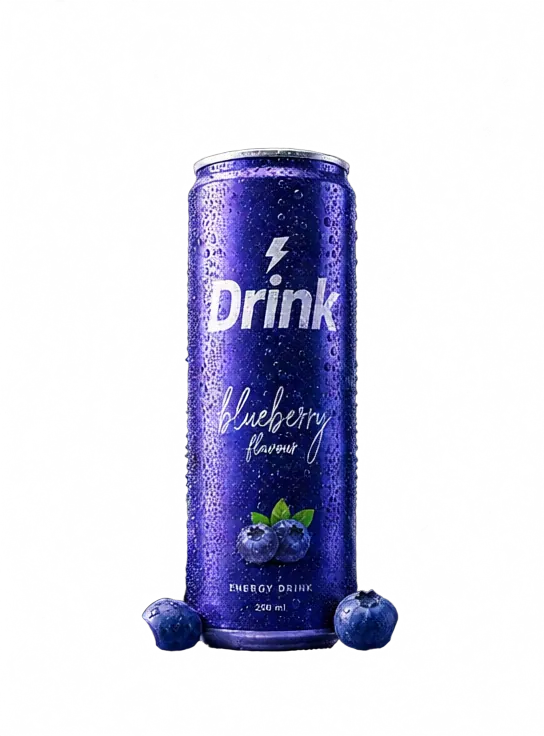
- 1Background
- 2Blueberries
- 3Headline text
- 4Can
A drink poster split into 4 layers. Upload your own image to split it the same way.
- PriceFrom 8 credits, paid accounts only
- DownloadsPSD, ZIP, or single PNGs
- Layers4 or 8 per image
- TimeAbout 15–45 seconds
- StoragePrivate to your account
See what comes out
Real Pro results from this tool, trimmed to the layers that matter. Hover or tap an image to pull its layers apart.
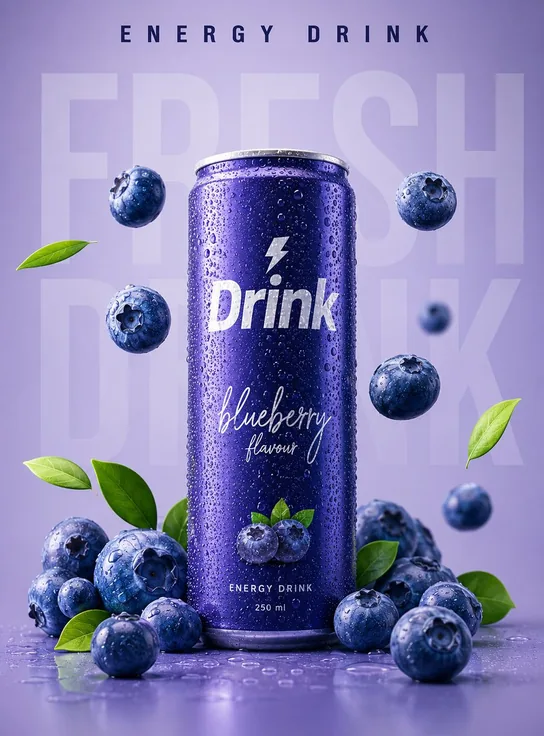 Original
- 1. Background
- 2. Blueberries
- 3. Headline text
- 4. Can
Drink posterThe headline lands on its own layer, ready to retype or translate. 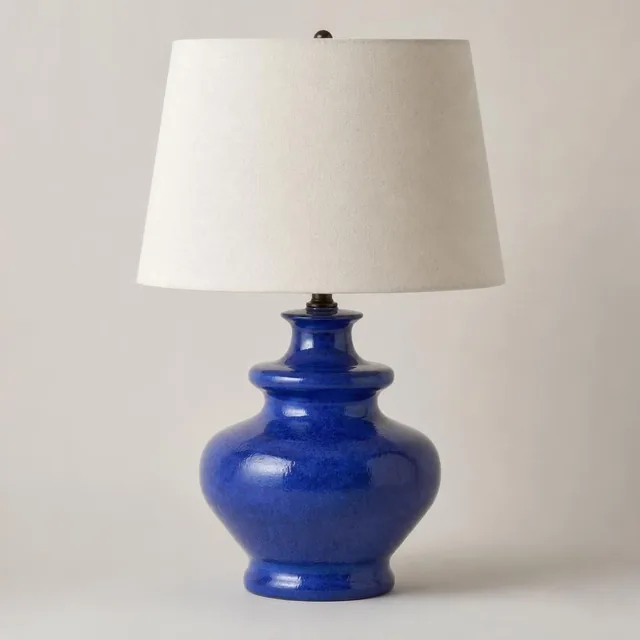 Original
 1. Backdrop
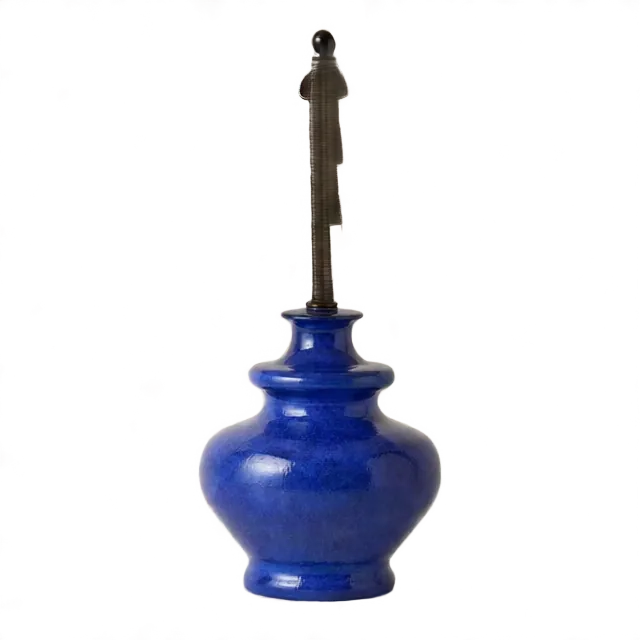 2. Lamp base
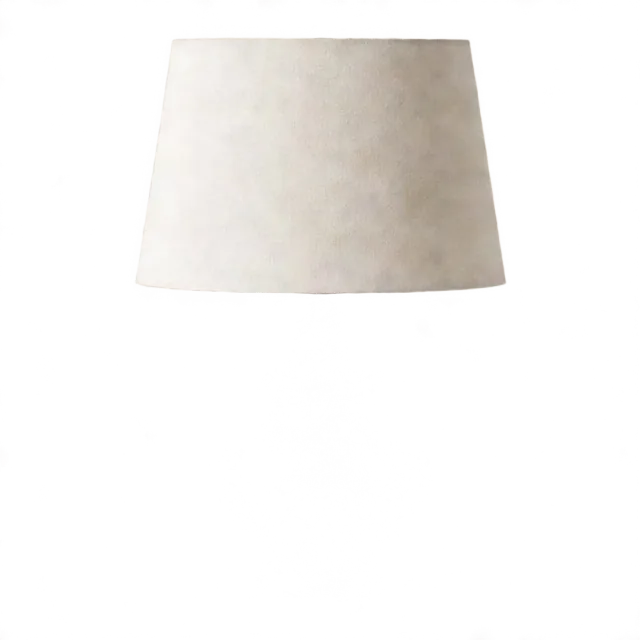 3. Lamp shade
Product shotBase and shade come apart, so you can recolor one without the other. 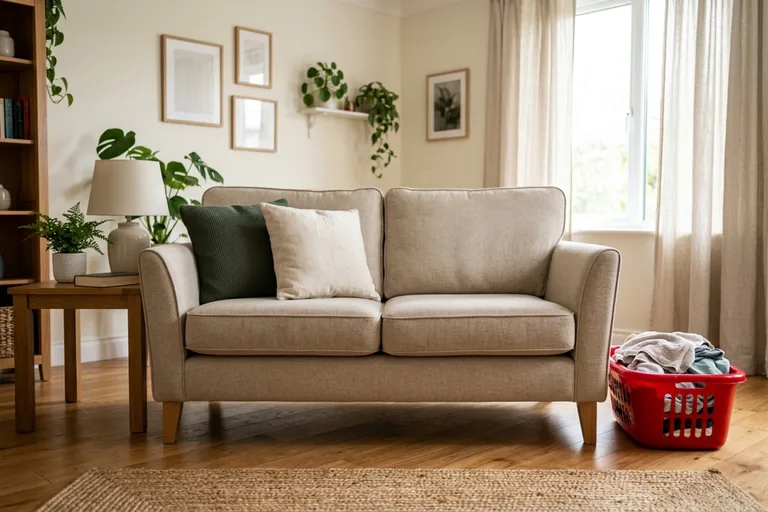 Original
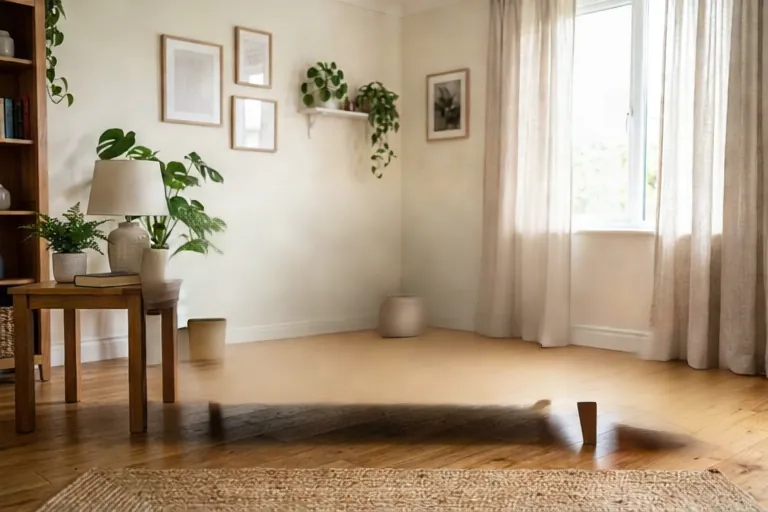 1. Room
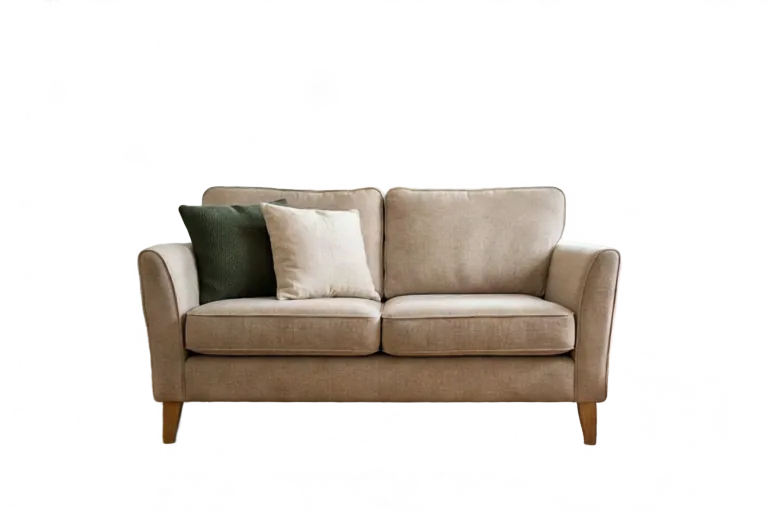 2. Sofa
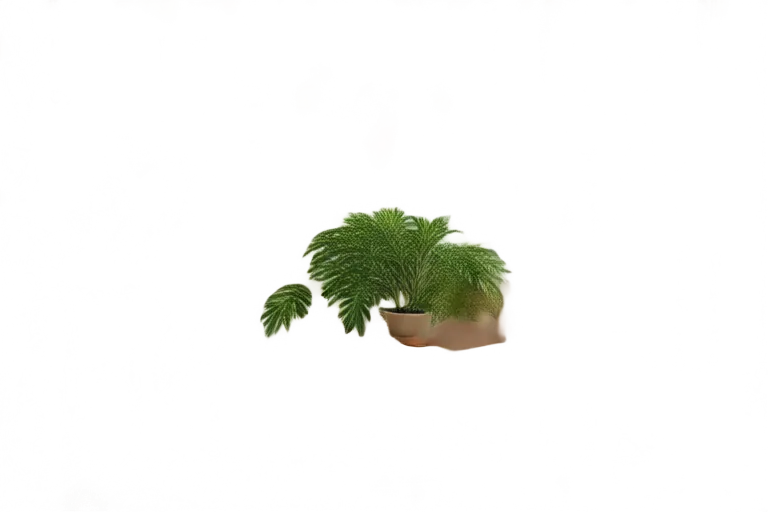 3. Plant
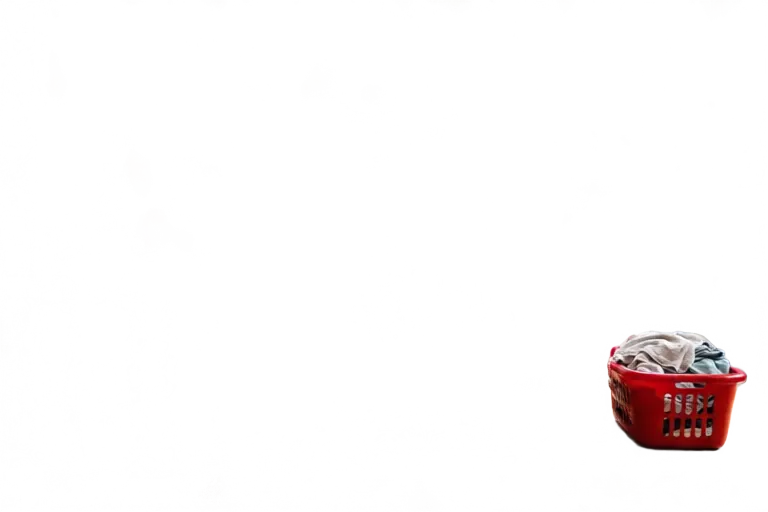 4. Laundry basket
Living roomFurniture lifts off and the floor behind it is filled in. 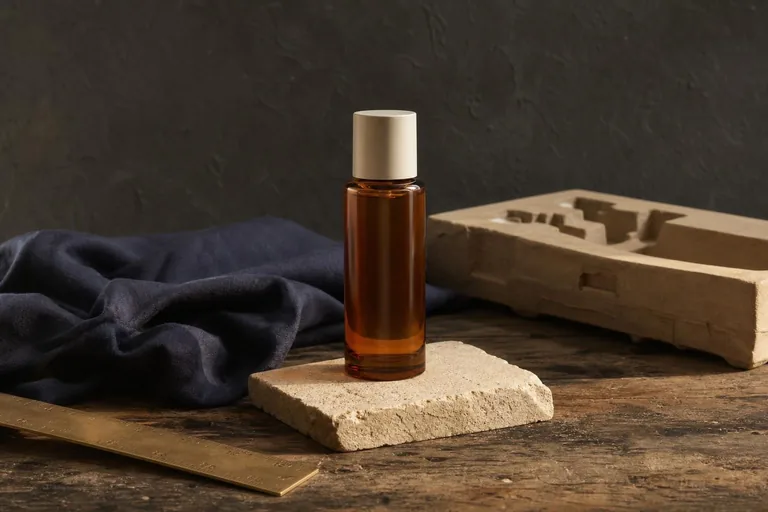 Original
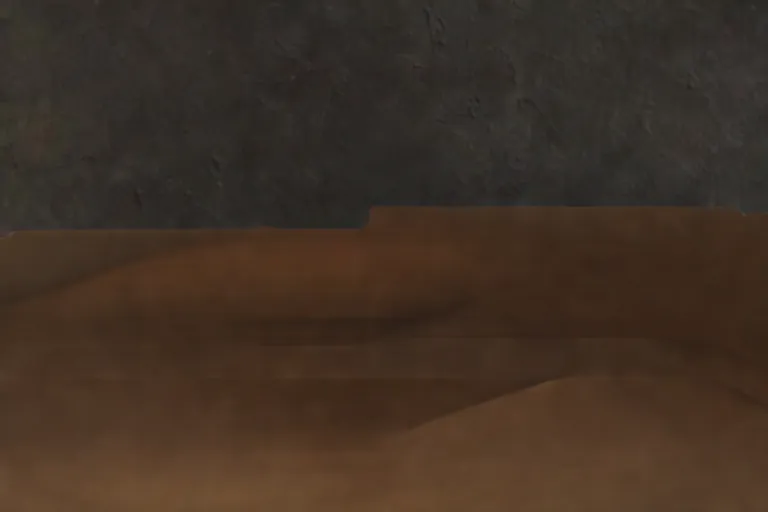 1. Backdrop
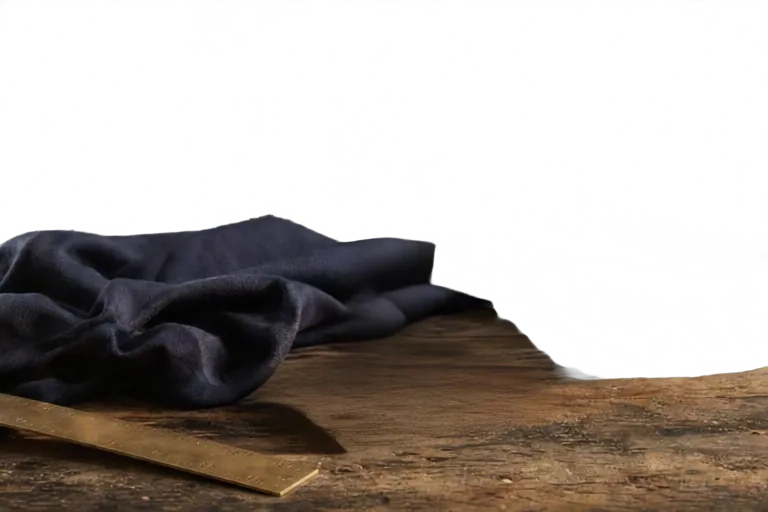 2. Cloth and board
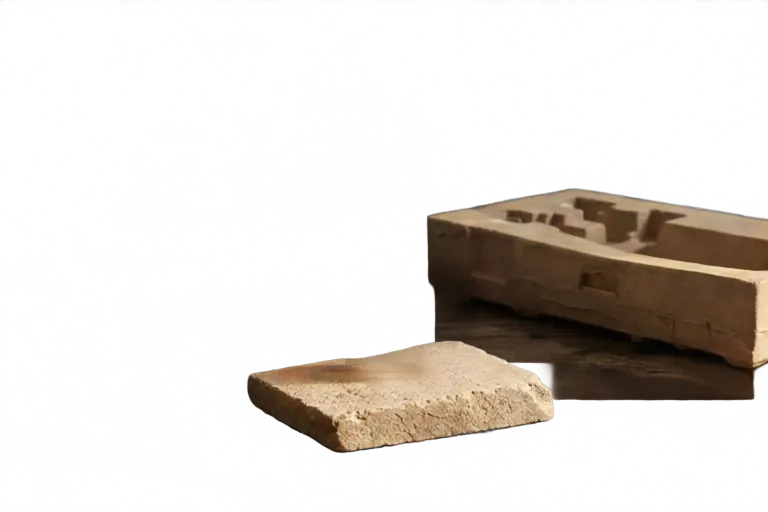 3. Stone props
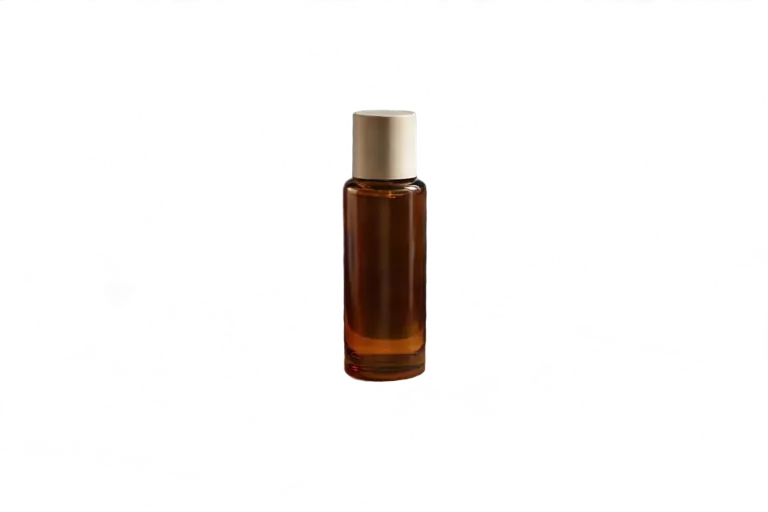 4. Bottle
Still life8 layers grouped into 4. Swap the backdrop and keep the bottle sharp. 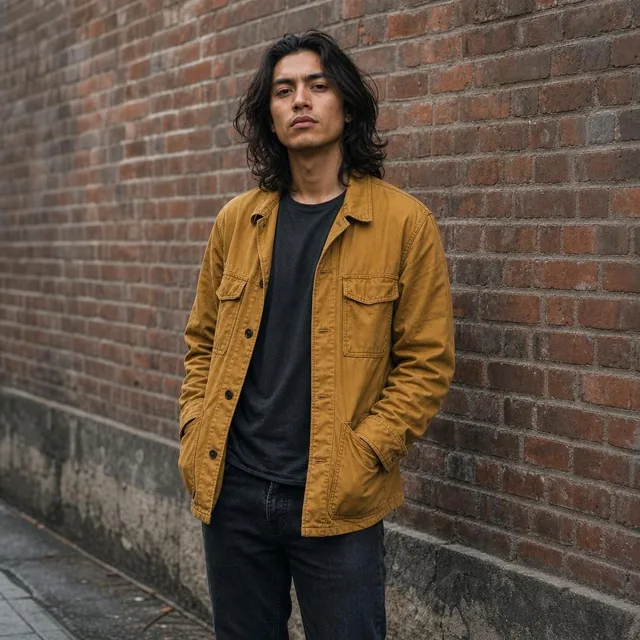 Original
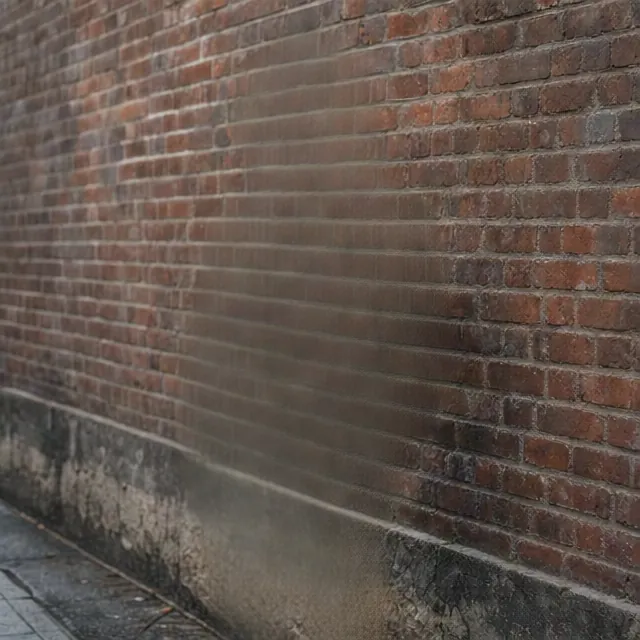 1. Brick wall
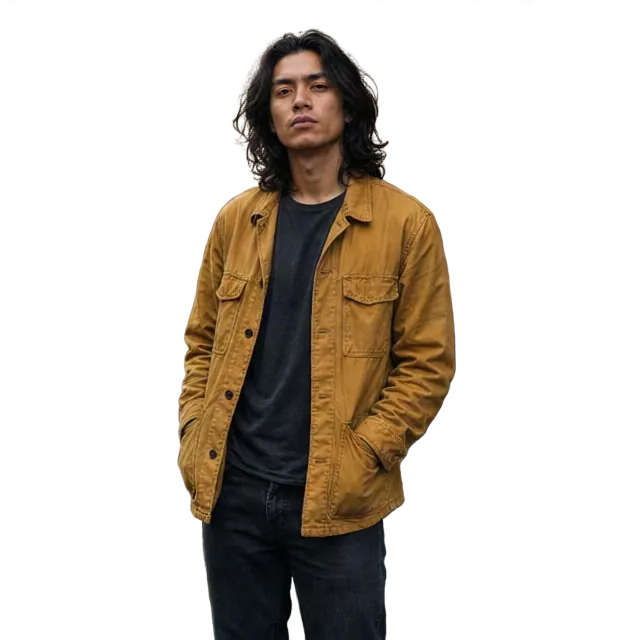 2. Person
PortraitThe person separates from the brick wall for a quick background swap.
Why a flat image is hard to edit
Once an image is flattened, every change means masking by hand.
One word means rebuilding the poster
AI posters and old exports come as one flat file. Fixing a typo or translating a headline means cutting out the text and repainting what was behind it.
Cutting out objects takes hours
Selecting a product, a sofa, or a person with the lasso and then cleaning the edges is slow, even for one image.
Background removers leave a hole
They keep the subject and give you nothing behind it. Here the area behind each object is filled in, so you can move things around.
From one image to layers in three steps
No masks or selections. Upload, pick a version, and download.
- 1
Upload an image
JPG, PNG, or WebP up to 10 MB. Posters, product shots, rooms, and portraits work best.
- 2
Choose Fast or Pro and a layer count
Fast is cheaper for simple scenes. Pro separates text and busy scenes more reliably. Pick 4 or 8 layers.
- 3
Download PSD, ZIP, or PNGs
Hide layers to check the split, then open the PSD in Photoshop, Photopea, or any editor that reads layers.
What people use it for
Most splits end up in one of these three jobs.
Edit text on posters and ads
Get the headline on its own layer, then retype it, translate it, or delete it without repainting the background.
Reuse product photos
Lift the product off its scene to try new backgrounds, colors, or layouts for listings and ads.
Build parallax and motion assets
Separate foreground, subject, and background so you can animate depth in After Effects, CapCut, or a website hero.
Fast or Pro?
Both use the same layering model. They differ in how carefully they split the image.
Fast
- Price
- 8 credits for 4 layers, 12 for 8
- Best for
- Simple scenes with a few clear objects
- Separation
- Coarser. Nearby objects may share a layer.
Pro
- Price
- 22 credits for 4 layers, 44 for 8
- Best for
- Posters, text, and busy scenes
- Separation
- Finer edges and more complete layer sets.
What to expect
The limits up front, so you know what you get before you spend credits.
Hidden areas are an estimate
Whatever was behind an object is filled in by AI. It looks natural, but it is not the original pixels.
Text can be redrawn
Text usually gets its own layer but can come back slightly different, for example solid instead of see-through. Check it before you publish.
Layers are about 1024 px
Output is up to about 1024 px on the long edge. Upscale the layers afterwards if you need print size.
Failed runs are refunded
If a split fails, the credits go back to your balance automatically.
Questions before you split
Text editing, character art, file formats, and what happens to your credits.
- Can I edit the text after splitting?
- Usually, yes. Text tends to come back on its own layer, so you can hide it and type new text in your editor. The layer is pixels, not live text, and it can come back slightly redrawn, so check spelling and opacity before you publish.
- Does it work for game characters or Live2D rigs?
- Only roughly. The model splits an image into objects and regions, not into body parts like arms, hair, and eyes. For rigging you still need to cut parts by hand, but it can save time on the background and props.
- How is this different from a background remover?
- A background remover keeps one subject and throws the rest away. This tool returns every part as its own layer and fills in what was behind each object, so the background stays usable.
- How is it different from Canva Magic Layers?
- Magic Layers works inside Canva's editor. This tool gives you a standard PSD and plain PNG files that open in Photoshop, Photopea, GIMP, Figma, or After Effects, so you can keep editing wherever you already work.
- Should I pick 4 or 8 layers?
- Pick 4 for a simple scene with a few objects. Pick 8 for posters and busy scenes. If the image has fewer objects than layers, some layers come back empty.
- What resolution are the layers?
- Up to about 1024 px on the long edge, in the same shape as your image. For large prints, upscale the layers afterwards.
- What happens if a split fails?
- The credits go back to your balance automatically, and the reason is shown on the page.
- Are my images private?
- Yes. Your upload and its layers are stored in your account and never appear in a public gallery.
Explore more
Clean up, relight, or create an image before you split it.
Ready to split your image?
Upload one image, choose Fast or Pro, and see the exact credit cost before you start.